

Before turning on offline payments, it helps to define what they are.
Offline payments are any payments collected outside of GroupSpot’s built-in credit card processing. This includes cash, checks, and peer-to-peer payment methods such as PayPal, Venmo, Zelle, and Cash App.
Offline payments can be enabled for both payment posts and registrations. Once enabled, administrators can record those payments inside GroupSpot so payment records and accounting ledgers stay accurate.
When creating a payment post or registration, look for the Allow Offline Payments setting.
This option is off by default. If you want members to have the option to pay later using an offline payment method, simply toggle this setting on.

Once offline payments are enabled and the payment post or registration is live, administrators can record incoming offline payments to keep balances accurate.
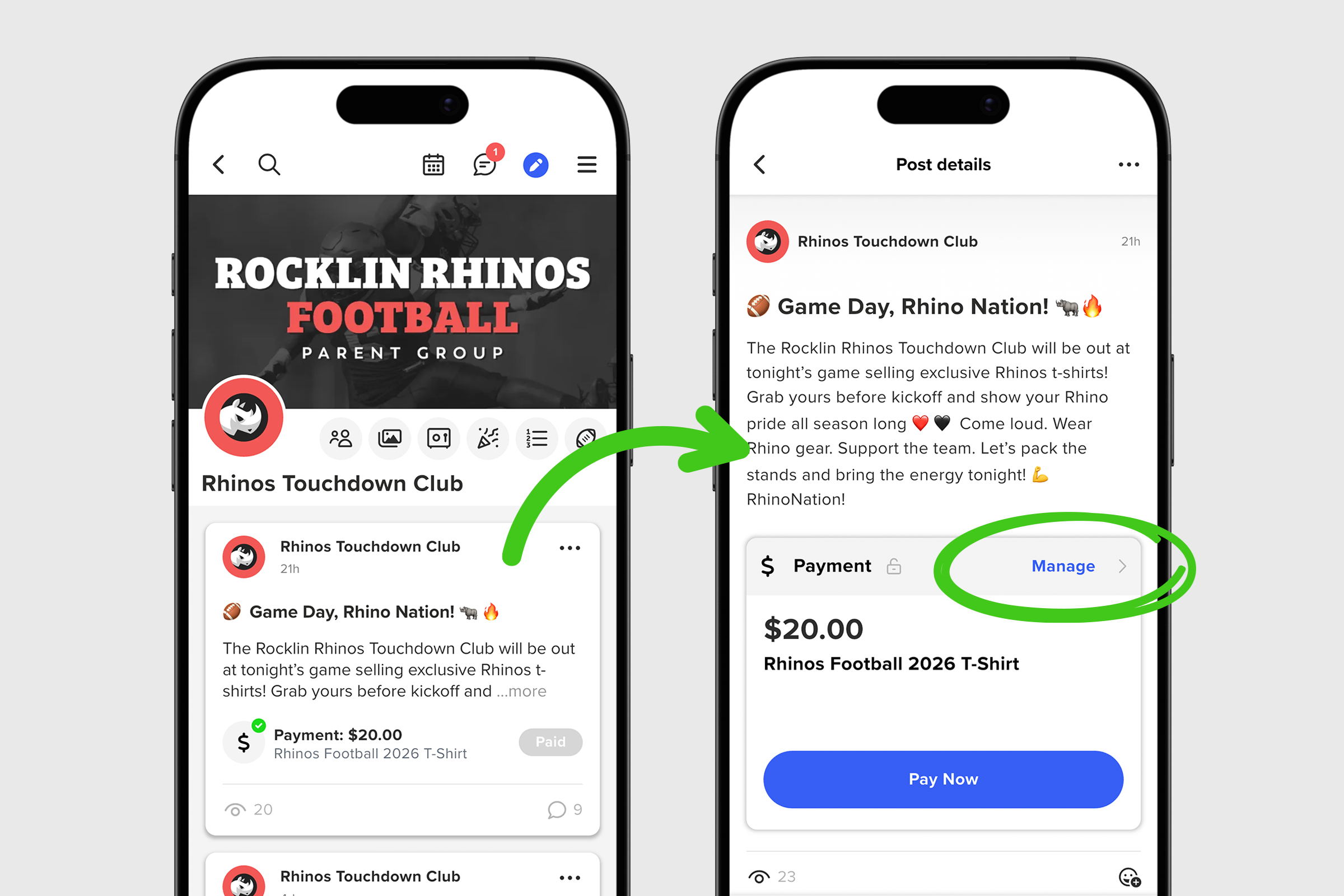
1. Open the payment post or registration and select Manage (visible only to administrators).
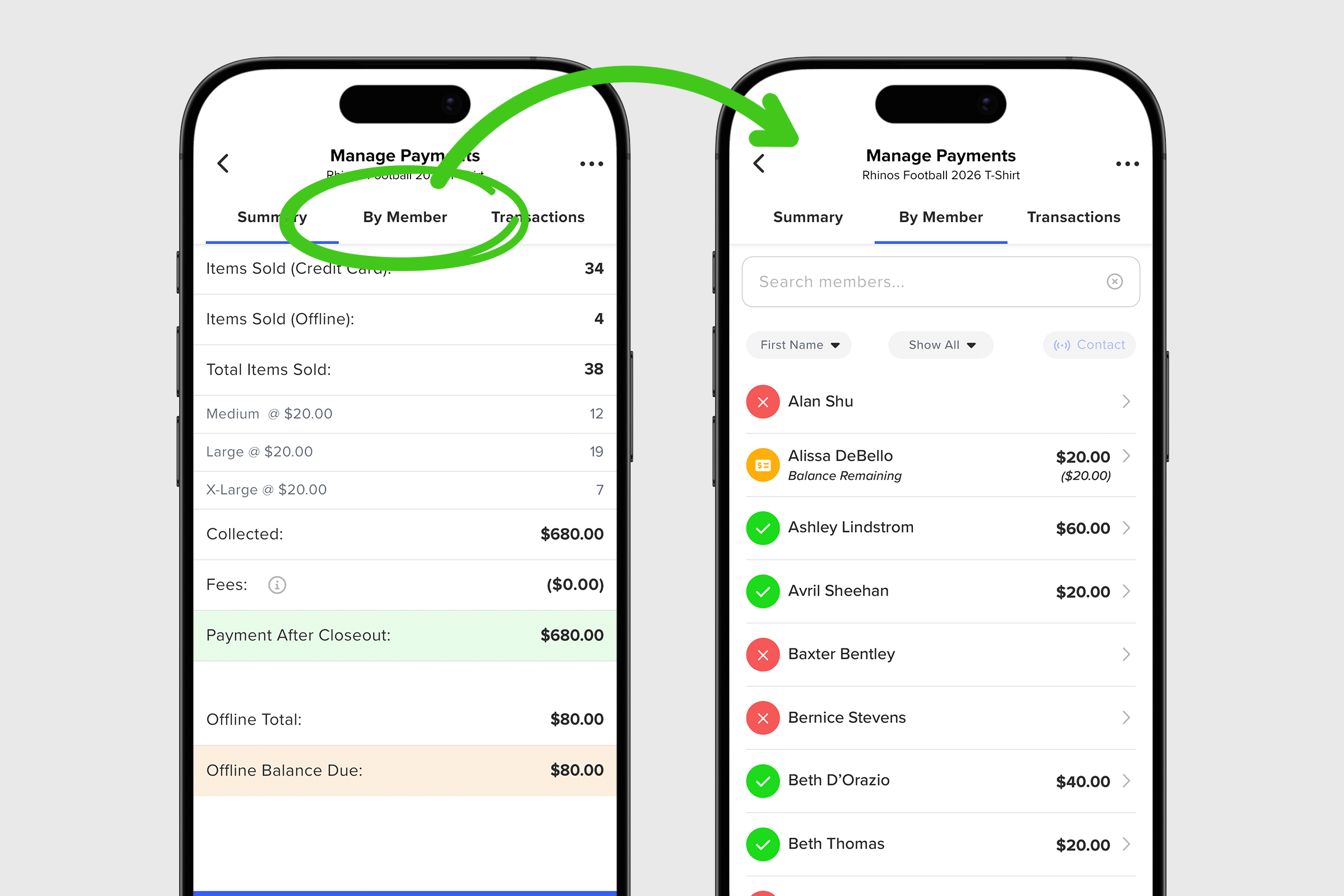
2. In the upper navigation, choose either the By Member tab or the Payments/Registrations tab.
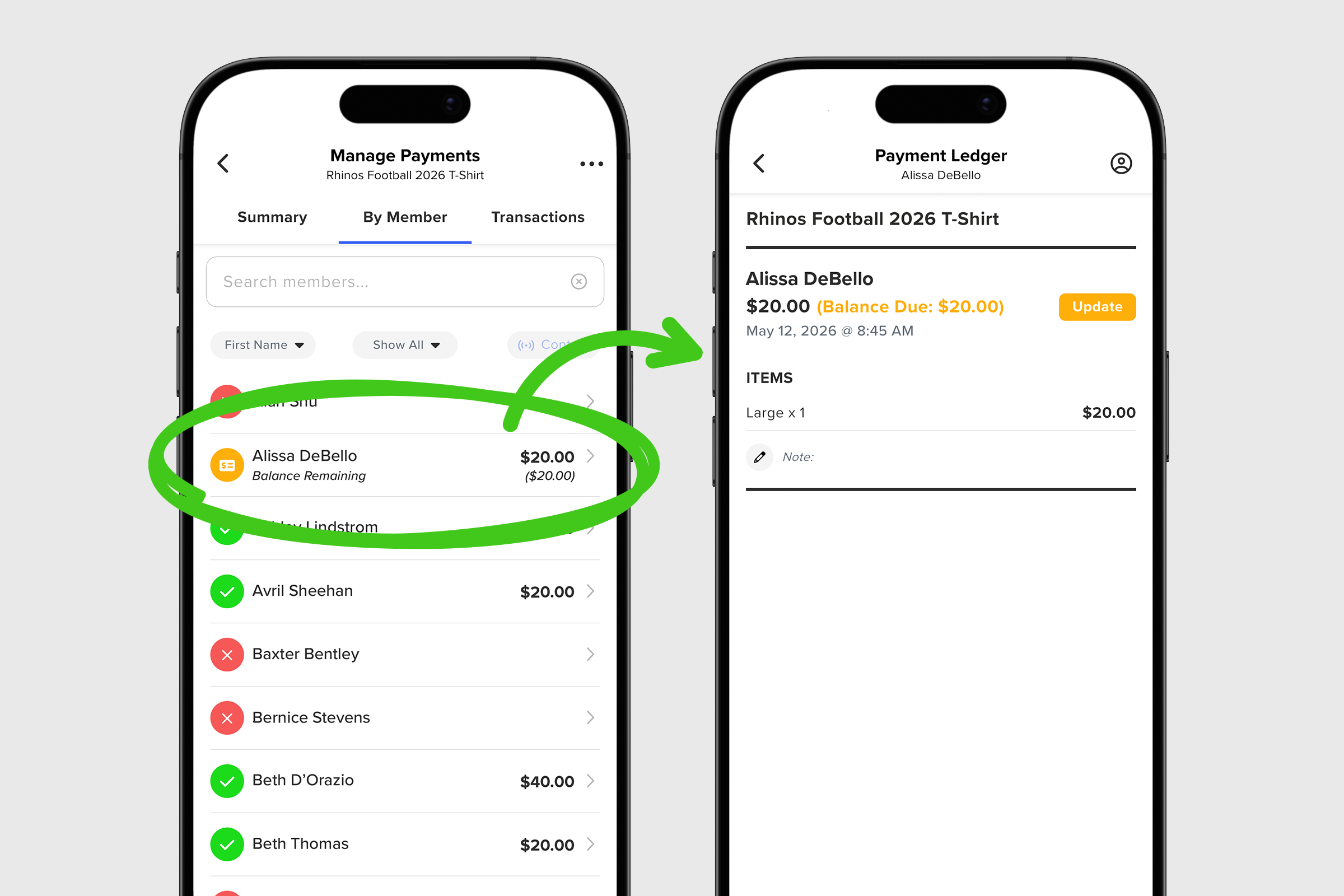
3. Locate the member or the payment/registration that appears in the yellow icon where it notes there is a balance remaining.
4. Select that row to view the member’s payment history.
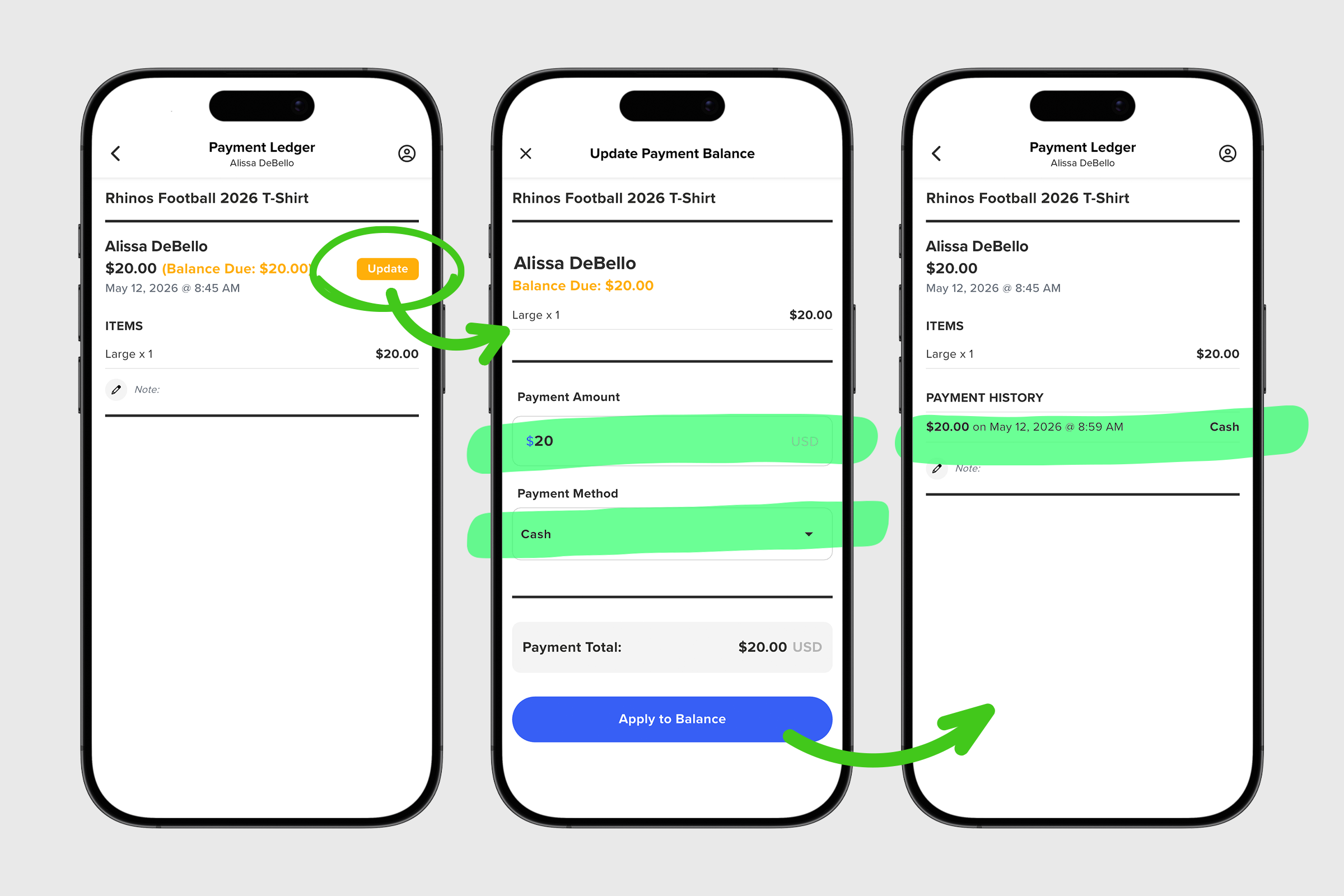
5. At the top of the page, select the Update button (also highlighted in yellow) to open the reconciliation screen.
6. Under Payment Amount, enter either the full payment amount or a partial payment amount.
7. Open the Payment Method dropdown and select the appropriate payment type: Check, Cash, PayPal, Venmo, Zelle, CashApp, or Other.
8. Select Apply to Balance.
9. Once saved, the payment will be reflected on the summary pages to indicate either a Complete status or that a partial payment has been paid offline.
Recording offline payments as they are received keeps member balances accurate and your payment records up to date. With offline payments enabled, your group can offer members more flexibility while maintaining clean, reliable accounting inside GroupSpot.


