

When creating a form on GroupSpot, you have several answer types to choose from depending on the information you need to collect. The most common options are free flow text, checkboxes, and multiple choice. You can also add answer types like dates for date of birth, times, and even file attachments.
GroupSpot also makes it easy to collect digital signatures directly within a form. This is especially useful for common forms like Code of Conduct agreements, field trip permission slips, participation waivers, and medical release forms. Here’s how to create a form that requires a signature:
1. During the create post flow, tap the + button and choose Form from the menu of add-ons.
2. Once you Name Your Form, tap New Question in blue.
3. Add the content that requires a signature in the Add Your Question field.
4. Tap the dropdown menu on the row below to open the list of answer choices and select Signature.
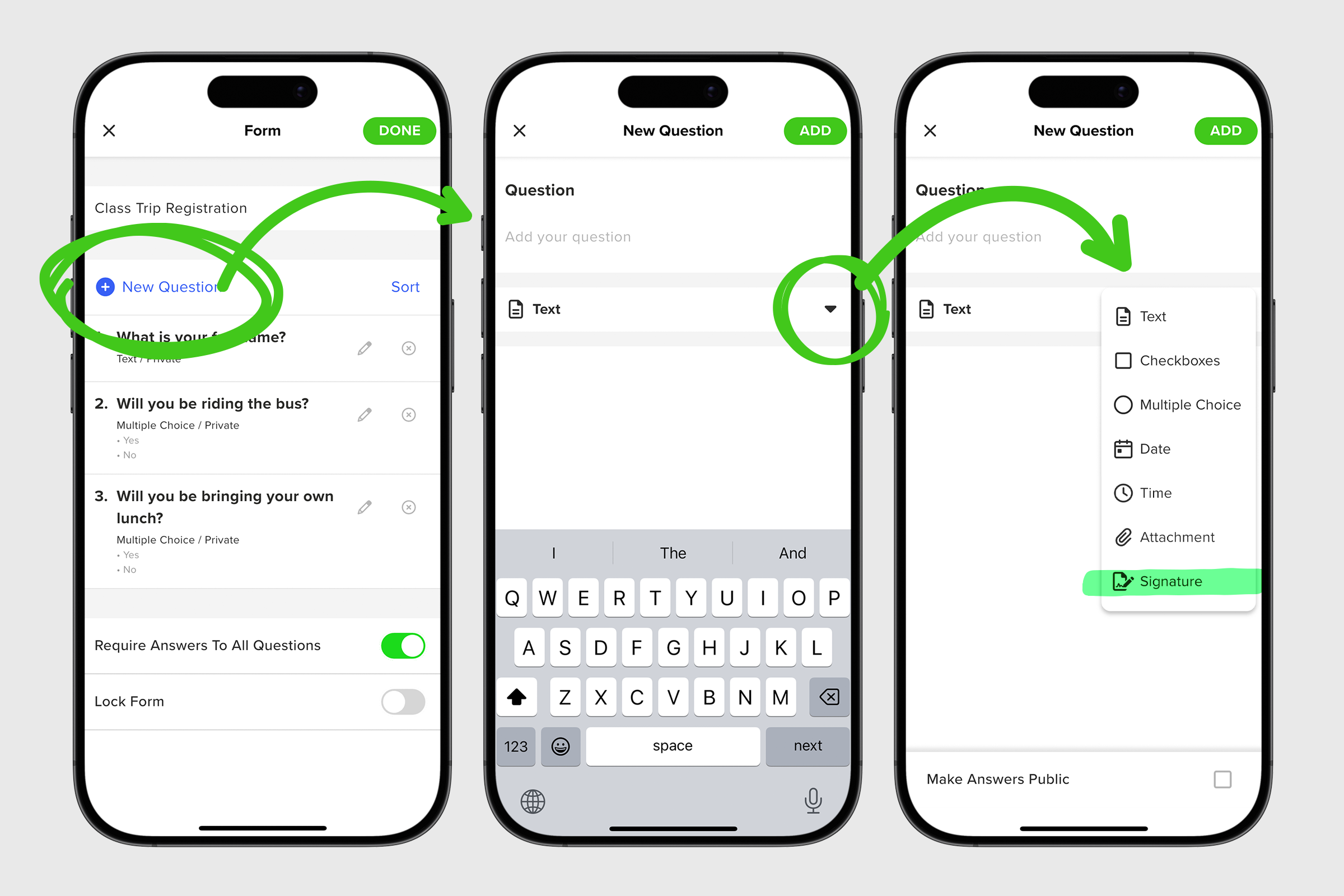
5. Continue building your form by adding more questions, choosing whether answers are required, and deciding if responses should be public or private.
6. Once your form is complete, tap on the green SAVE button to return to your form settings screen.
7. If everything looks correct, tap DONE to return to your Create Post screen, then tap Post to publish your form.
With digital signatures built directly into forms, organizers can simplify paperwork and keep everything securely stored in one place. It’s an easy way to streamline approvals, permissions, and important acknowledgements for your group.


