

Teams have a dedicated place to post live scores and keep fans connected from anywhere. Whether you’re a coach updating final scores to keep track of your team record or a parent booster sharing live in-game updates and play-by-play for their audience, GroupSpot makes it easy. You can even sync scores and play-by-play directly to your group chat. Here’s how to keep supporters updated on game day.
Before kickoff, make sure the game appears in your feed so supporters can find it easily. You will quickly see that game posts have a special treatment different from standard posts and events. They look like scoreboards dressed in team colors with the ability to add scores and play-by-play.
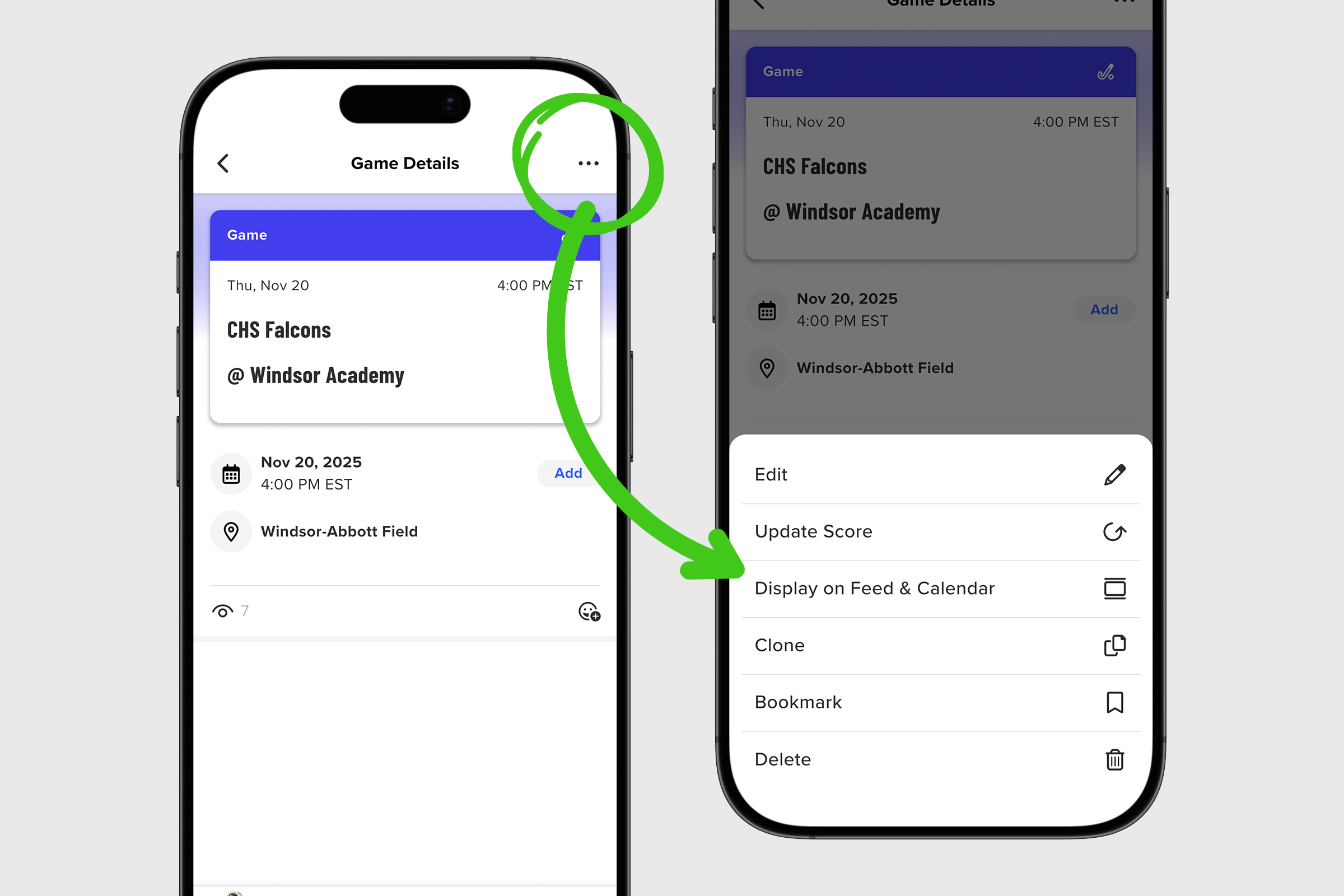
When games get added, they are automatically set to live on your calendar since they are often added months before the season starts. You can adjust this setting when adding a new game or more likely afterwards when the game approaches on the calendar. Here’s how to move a game from your calendar to both your feed and calendar:
1. Tap on the ••• on the game post located on your calendar or inside your games feature and choose Display on Feed & Calendar from the menu of options.
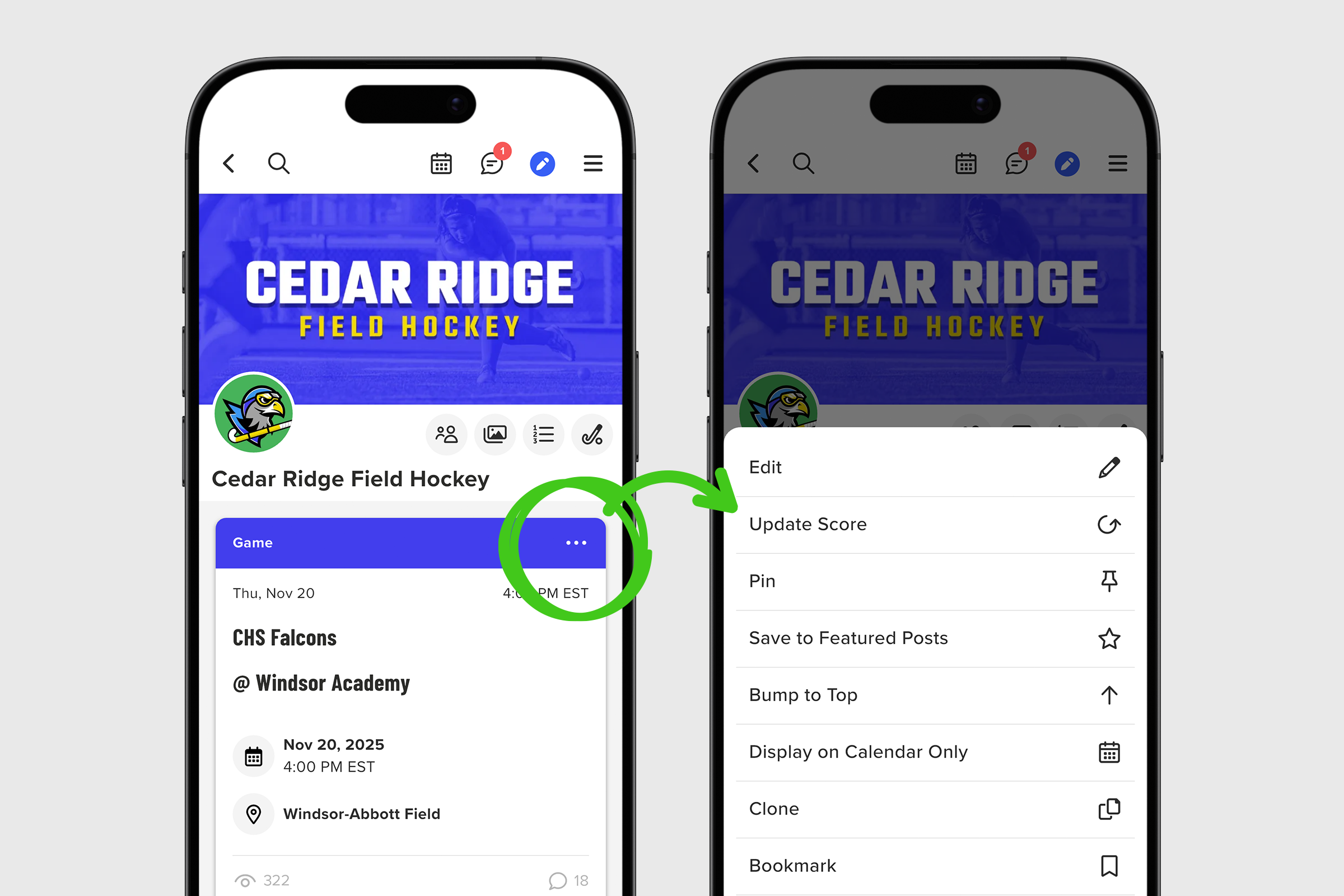
Now that your game is now visible and about to begin, it’s time to update scores and play-by-play.
1. On your game post, also called a competition, match, or meet depending on the sport, the matchup appears at the top of the scoreboard. From here, tap the ••• and select Update Score from the menu options.
2. To add updates, enter a Score Update, a game Status, or Play-by-Play Updates. When your first update is ready to post, tap the blue Update button in the lower navigation to publish your update.
3. Once your first update is published, notice the bar at the top of your screen changes from Not Yet Started to In Progress.
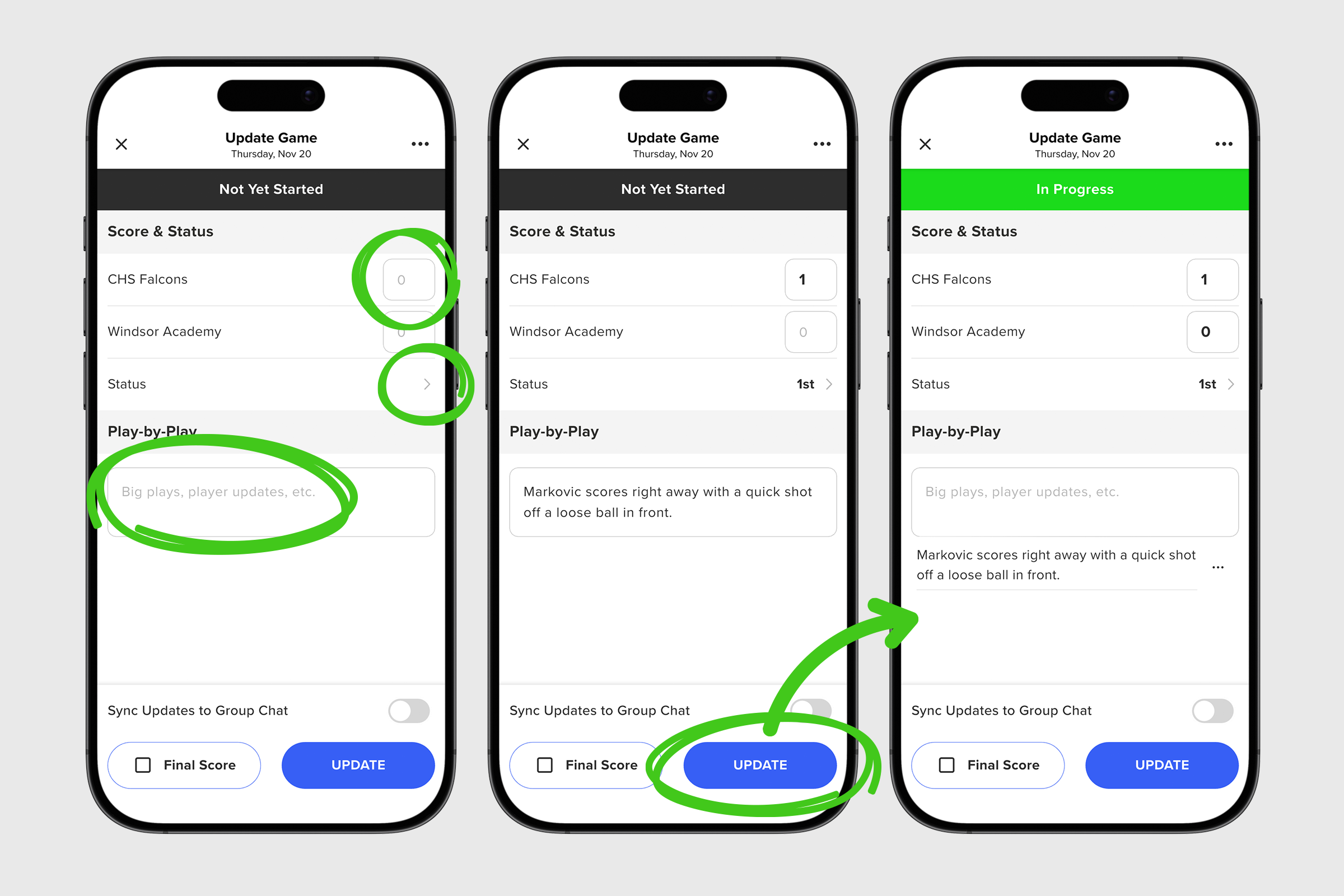
4. Continue adding scores, changing status, or sharing play-by-play updates throughout the game.
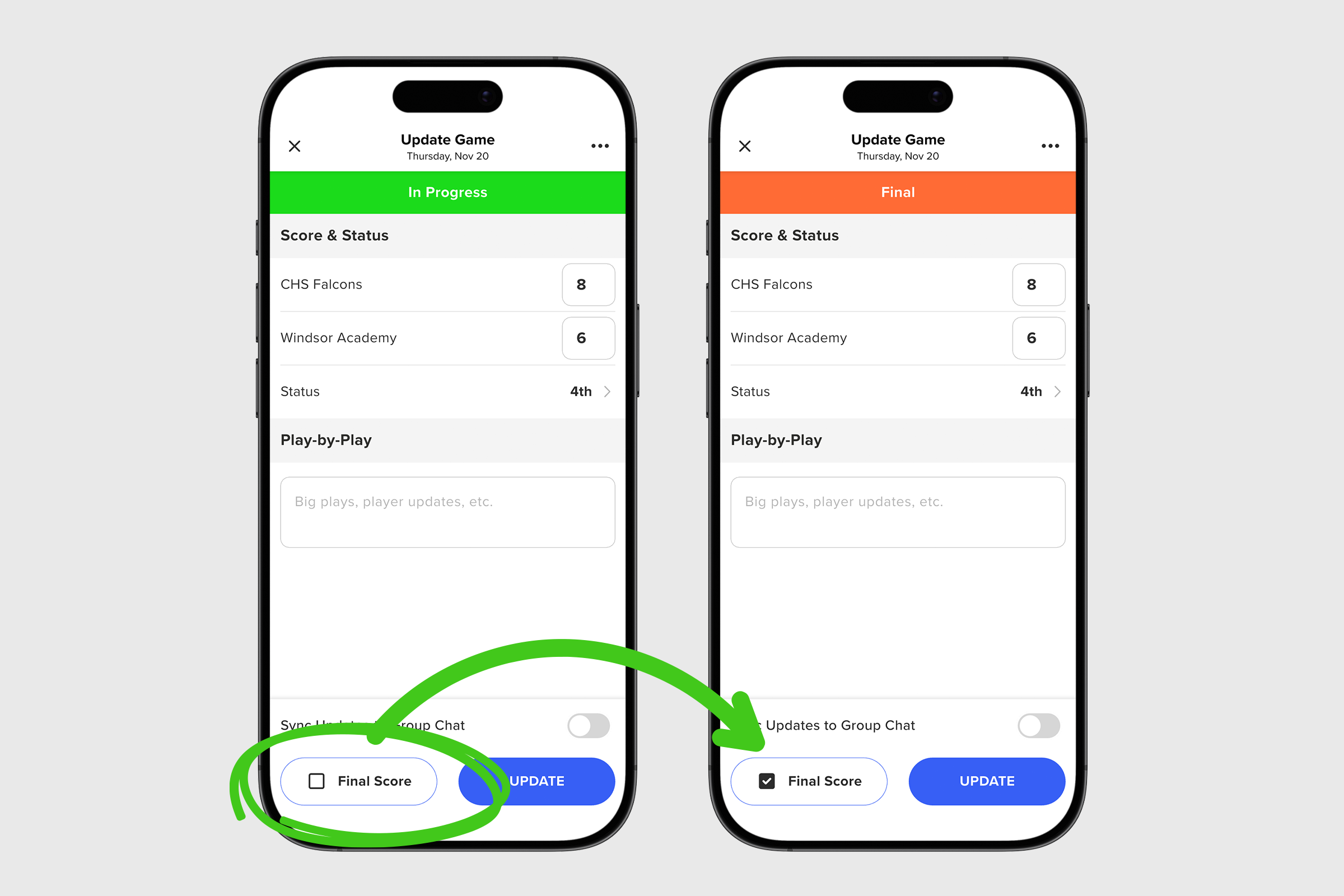
5. When the final whistle blows, tap the Final Score checkbox to mark the game complete.
6. Once saved, the bar at the top of the screen will change from In Progress to Final, and the Feed and Calendar scoreboard will display Final along with a ribbon highlighting the next game on the schedule. Supporters can check the post for the final score and upcoming matchup.
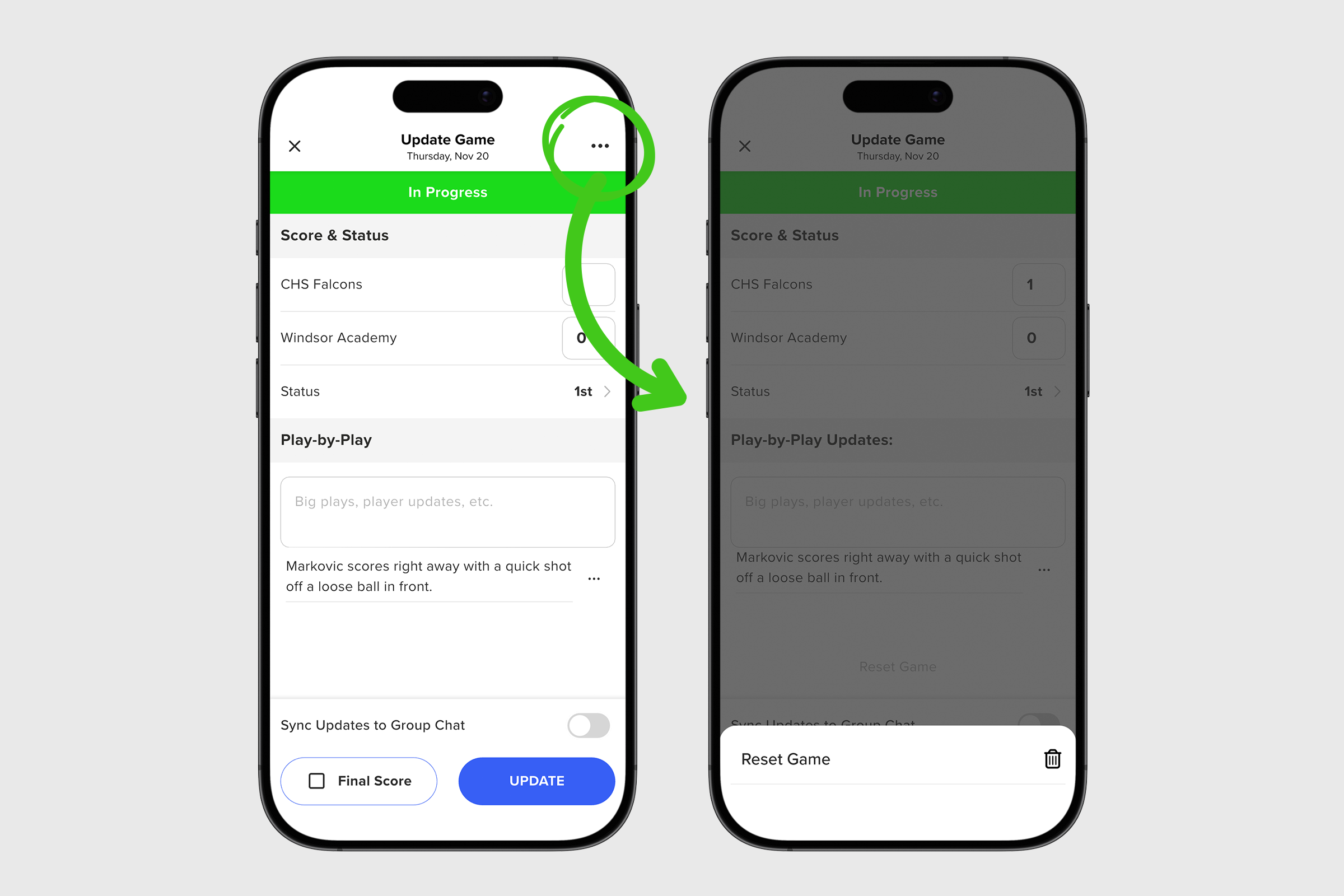
7. If you make a mistake at any time, such as adding a score to the wrong game, select Reset Game from the ••• menu to clear it and start fresh.
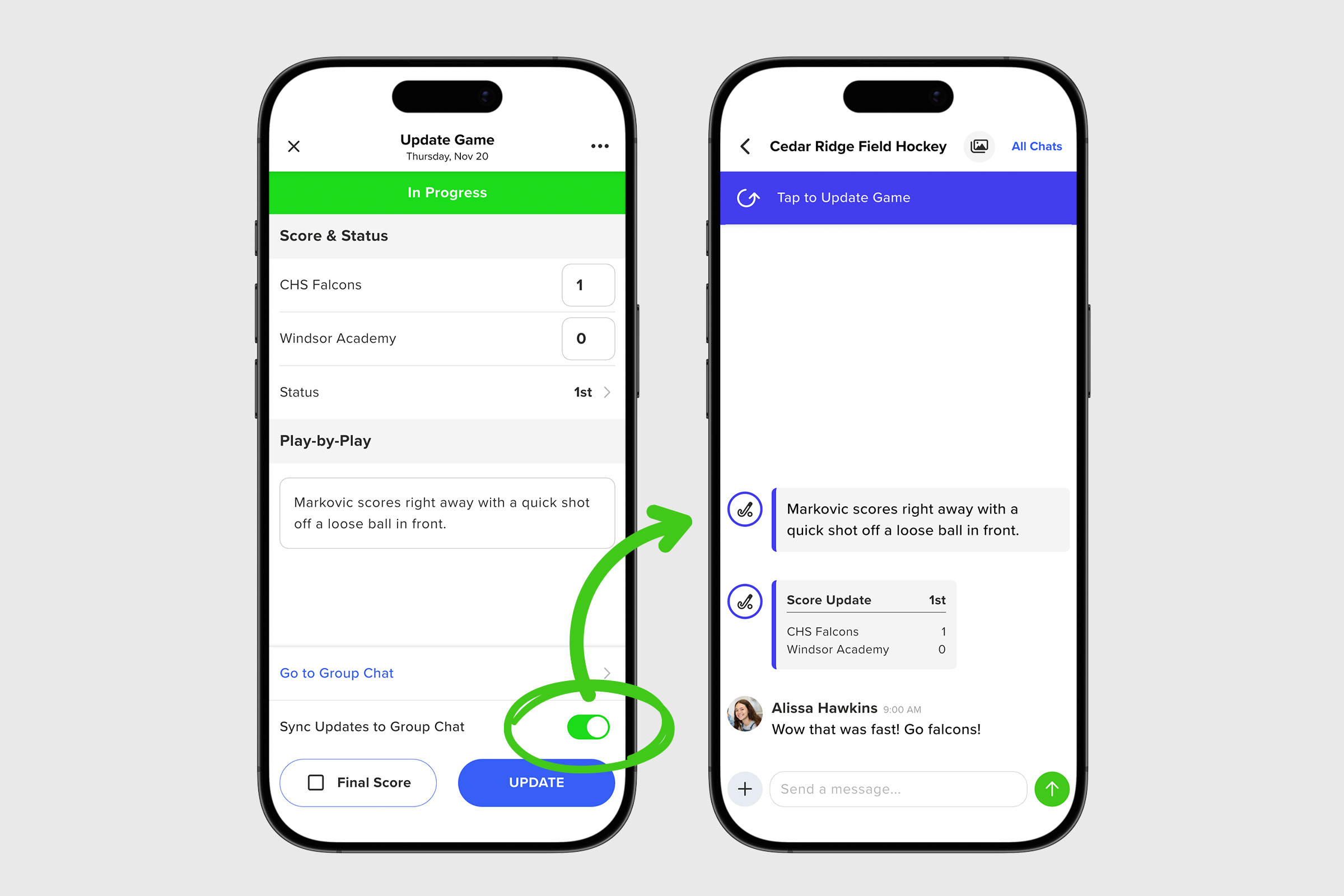
Admins or members with this role based permission can elevate score and play-by-play updates by syncing them to group chat.
1. On the same screen where you add game updates, locate the Sync Updates to Group Chat toggle in the lower navigation and slide it on.
2. This setting is off by default, but can be turned on to send live scores and play-by-play directly to chat. Once in chat, members can respond with comments and reactions to raise interest and boost engagement.
By combining live scores, play-by-play, and group chat, you give your supporters a shared game day experience no matter where they are. It is the easiest way to keep your community informed and connected all season long.


